1. Sending a Quick Email
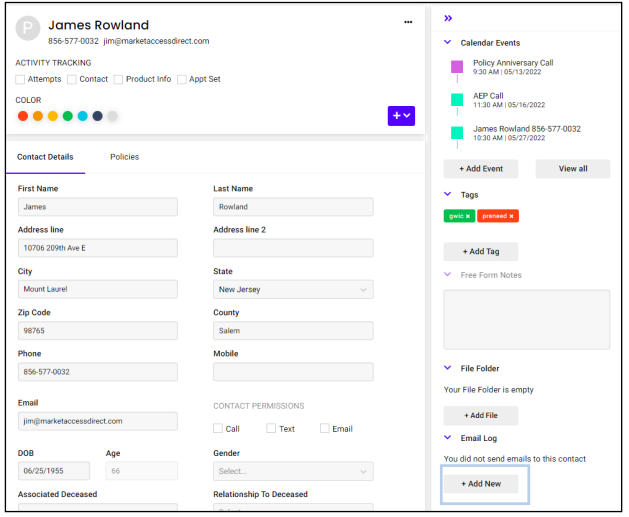
1. This function allows you to send a personalized email to a single contact.
2. Select the “All Contacts” box on the homepage.
3. Click on the name of the contact you wish to send an email to.
4. Click “+ Add New” located under the “Email Log” on the right side of your screen.
5. Fill in subject line and compose email.
6. Click “Send.”
2. Sending a Broadcast Email
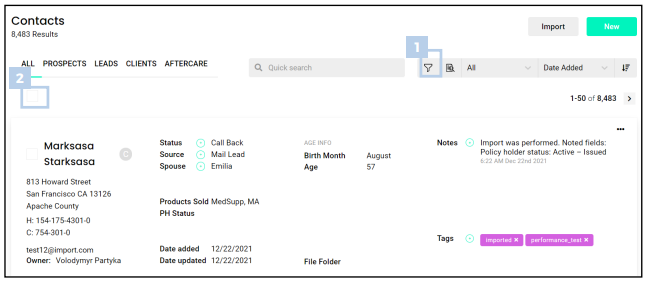
1. Click the “Advanced Search” icon to build your list.
2. Scroll down and click “Save” when done.
3. Check the box located on the left side below “ALL” to select all contacts or select the checkboxes next to the individual names.
4. Click “Email” located on the tool bar.
5. Select the message you would like to send from the email library. You can then preview the message below.
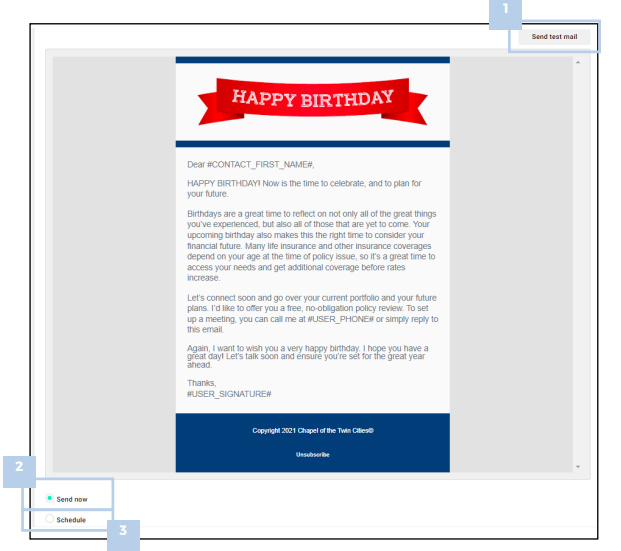
3. When you are ready to send, there are 3 options:
1. “Send Test Email”: this will email you the message to review
2. “Send Now”: this will send out the email to the contacts you have selected
3. “Schedule Email”: this option allows you to set a date and time at which the email will be sent.