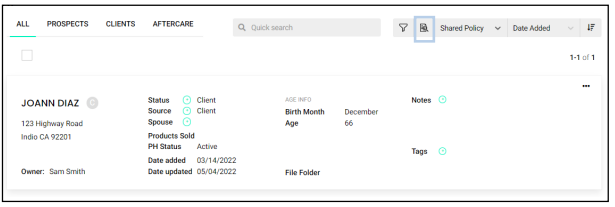
1. From the list view, Select Advanced Search which is the magnifying glass icon located in the top right.
2. On this page you can search by any field in the system. In the dropdown next to the field, you can select different matching options.
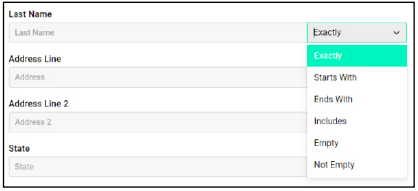
- Selecting “Exactly” will produce results that exactly match what you enter in the search box.
- Selecting “Starts With” will produce results that begin with your search but may have additional words.
- Selecting “Ends With” will produce results that end with your search but may have additional words.
- Selecting “Includes” will produce results that have the word(s) you searched within the result.
- Selecting “Empty” will produce contacts that do not have information for this field.
- Selecting “Not Empty” will produce contacts that have information recorded for this field.
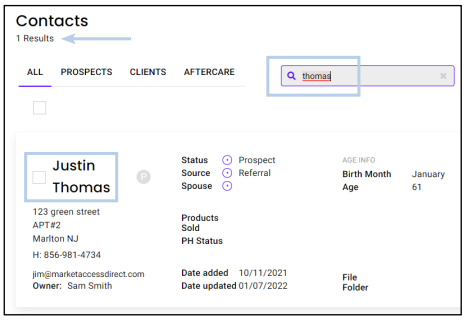
3. In the search bar, enter a name, phone number, or e-mail address to search your list for that information. The number of results will be displayed in the top left.
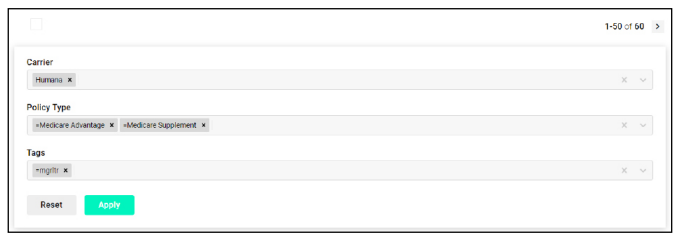
4. Search by Carrier, Policy Type and Tags
1. Select the funnel icon in the top right.
2. Enter the list of Carriers you wish the search for by selecting the carrier box and choosing your options from the dropdown.
3. Enter any policy type you want to include or exclude from your search.
4. Enter all tags you wish to include or exclude from your search.
5. Select Apply.
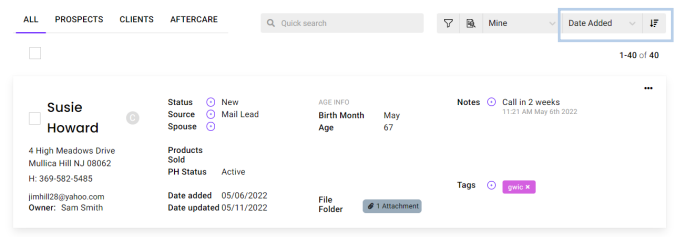
5. Sorting your list
1. You can order your list by field and ascending or descending order.
2. Select the field you wish to order by in the dropdown in the top right (Example: Last Updated).
3. Then select the down arrow to put your names in descending order and select the up arrow for ascending order