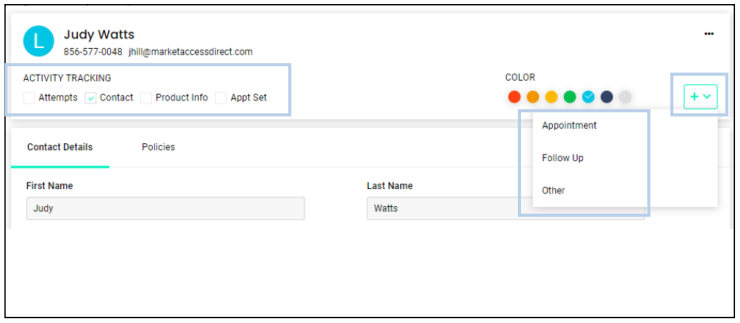
1. In the top section of the detailed view, you can edit Activity Tracking, Color, or add a Calendar Event.
1. Activity Tracking: Use the checkboxes at the top of a contact to record activity such as Attempts, Contacts, Product Info and Appointment Set.
2. You can also label contacts by Color using several options at the top of the contact record. Just select the color and hit save.
3. To set an Appointment, Follow Up, or general Calendar Event, for this contact, select the dropdown arrow next to color, select the event type and fill in the event details.
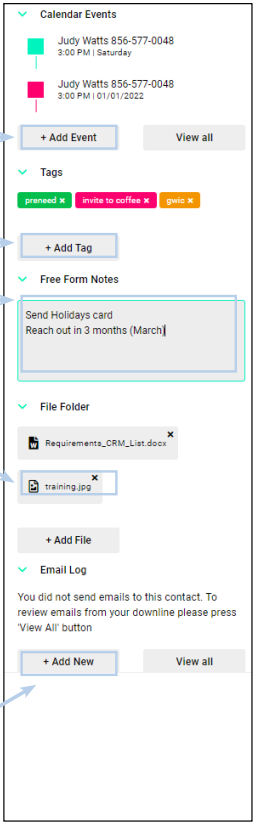
2. Right Side Layout
1. All Calendar events for a contact will now display within a contact. There is no date range set for what will display. To add a new calendar event, select “+Add Event”
2. To add a tag for the contact, select “+Add Tag”
3. The free form notes is text box where you can enter any information you would like. Type in your information and make sure to hit Save before leaving the page.
4. The File Folder section will hold all of your Files and Attachments. You can view all attachments by clicking on the file name or add a new attachment by clicking “+Add File”.
5. The Policy Submission Form and Firelight Submission Form are also now available in this section. Click on either option to be directed to that exact page.
6. E-mail activity will no longer take up space in your bottom notes. An e-mail log is located on the right hand side and will display all e-mail activity such as e-mails sent, delivered, and opened along with the date and time.
7. To send a quick e-mail to this specific contact, select “+Add New” in the e-mail log section and a new e-mail template will display, enter the details of the e-mail and click Send.
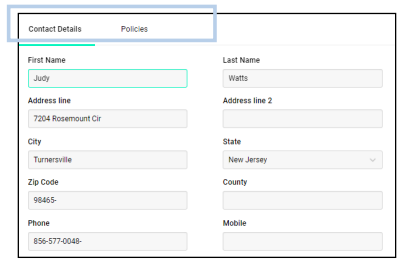
3. Along the top toolbar you have three options: Contact Details, Product Info and Policies.
1. . Contact Details allows you to add and edit information such as name, phone number, e-mail, date or birth, address, spouse details, status, source, policy holder status, products sold, and add information in the bottom notes.
2. On the Policies tab you can add a new policy by selecting +Add Policy in the top right. You can also view existing policies, and edit existing policies using the 3 dots in the last column of the policy details.

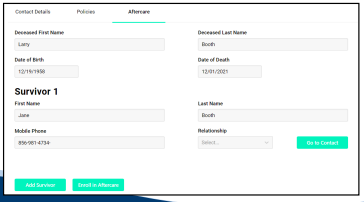
3. Aftercare tab is generated after a contact’s status is changed to deceased. This tab allows you to add survivors and their relationship to the deceased client. Up to 7 survivors can be added to each deceased client.