
1. Searching Contacts by Birth Date
1. From list view, select “Advanced Search”.
2. Scroll down to the birth date section and select from the following options: DOB, Birth Date Month, and Birth Date Day
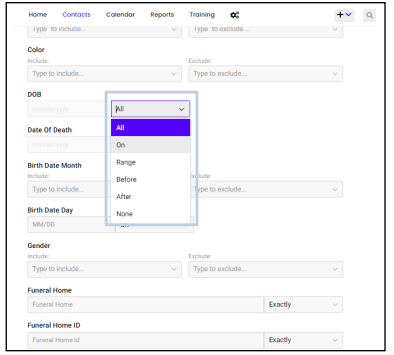
3. Selecting “On” in the matching dropdown will allow you to enter the exact birth date you wish to find results for.
4. Selecting “Range” will allow you to enter two dates and will produce a list of contacts who have birthdays within this range.
5. Selecting “Before” or “After” and entering a date will produce a list of contacts that have a birthday before or after the selected date.

2. Searching Contacts by Date Added: To quickly sort your contacts by “Date Added”, select Date Added in the dropdown at the top of the list view, and select the arrow icon to order them in ascending or descending order on your list. The Date Added for each contact with display on the list view in the middle row.
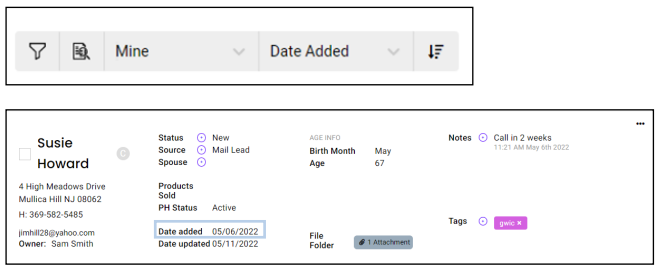
1. You can also use the “Advanced Search” to look for contacts added on a specific date.
2. Selecting the field next to date added will produce a dropdown.
3. Selecting “On” will only show contacts added on the date you have entered.
4. Selecting “Before” will only show contacts added before the specified date.
5. Selecting “Range” allows you to narrow down your search between two dates.
6. Click “Save” when done
3. How to use Search Dropdowns
1. From list view, select “Advanced Search”.
2. For search criteria such as first name, company, address, etc. you will be able to select different matching features from the dropdown.
3. Selecting “Exactly” will produce results that exactly match what you enter in the search box.
4. Selecting “Starts With” will produce results that begin with your search but may have additional words.
5. Selecting “Ends With” will produce results that end with your search but may have additional words.
6. Selecting “Includes” will produce results that have the word(s) you searched within the result.
7. Selecting “Empty” will produce contacts that do not have information for this field.
8. Selecting “Not Empty” will produce contacts that have information recorded for this field.
9. Click “Save” to run the search.